Using ShrinkRapt 2018 or older? Upgrade to 2026 and use it free for 60 days
If ShrinkRapt won’t open, quits, shows errors, or stopped working after a Mac update, you’re almost always running an old version (2018 to 2025). Updating to ShrinkRapt 2026 fixes most errors, including “record is locked” and printing and emailing problems. ShrinkRapt 2026 runs on macOS 27.
Is the update extra? No. Updates are included in your subscription.
Which version do I have?
- Mac: Click the ShrinkRapt menu and choose About ShrinkRapt.
- Windows: Click the Help menu and choose About ShrinkRapt.
If the version starts with 2026, you’re up to date.
Updating macOS? Update ShrinkRapt to 2026 first, then update macOS.
Mac
Option A: Software Update (try this first)
- Open ShrinkRapt and click the File menu.
- If you see Software Update, choose it. The new version installs and ShrinkRapt restarts. You’re done.
- Check About ShrinkRapt again. The version should start with 2026.
If you don’t see Software Update, or the version doesn’t start with 2026, use Option B.
Option B: Install ShrinkRapt 2026 (your old version still opens)
All your data is in one file, and the new version converts it the first time it opens it.
- Click the ShrinkRapt menu and choose About ShrinkRapt. It shows your data file. Write down its name and location.
- Quit ShrinkRapt.
- Click the Finder icon in the Dock, click the Search icon in the upper right, and type .4dd. Find the file with the name and location you wrote down in step 1. To rename it, click it once, press Return, type ShrinkRapt_Data.4dd and press Return again. Then drag it into your Documents folder.
- Download the ShrinkRapt Installer: ShrinkRapt_Installer.dmg
- Go to your Downloads folder and double-click ShrinkRapt_Installer.dmg. A license agreement appears. Click Agree.

- A ShrinkRapt window opens with the ShrinkRapt icon on the left and an Applications folder on the right. Drag the ShrinkRapt icon onto the Applications folder.

- If you see “An item named ShrinkRapt already exists,” click Replace. Don’t click Keep Both.

- Open your Applications folder and double-click ShrinkRapt. If your Mac asks if you’re sure you want to open it, click Open.
- Check that your recent patients and visits are there. Once they are, put any older versions of ShrinkRapt (2018, 2020, 2022 and so on) in the Trash.
Option C: Install ShrinkRapt 2026 (your old version won’t open at all)
You can install ShrinkRapt 2026 without opening the old version.
- Find your data file. Click the Finder icon in the Dock, click the Search icon in the upper right, and type .4dd. Your data file ends in .4DD. If you see more than one, email us a screenshot of the results before going on.
- Rename the data file ShrinkRapt_Data.4dd and move it to your Documents folder.
- Download the ShrinkRapt Installer: ShrinkRapt_Installer.dmg
- Go to your Downloads folder and double-click ShrinkRapt_Installer.dmg. A license agreement appears. Click Agree.
- A ShrinkRapt window opens with the ShrinkRapt icon on the left and an Applications folder on the right. Drag the ShrinkRapt icon onto the Applications folder.
- If you see “An item named ShrinkRapt already exists,” click Replace. Don’t click Keep Both.
- Open your Applications folder and double-click ShrinkRapt. If your Mac asks if you’re sure you want to open it, click Open.
- Check that your recent patients and visits are there. Once they are, put any older versions of ShrinkRapt (2018, 2020, 2022 and so on) in the Trash.
The pictures for steps 4 to 6 are in Option B above.
If the install doesn’t work
- “I double-clicked the installer but ShrinkRapt isn’t in my Applications.” Double-clicking only opens the installer window. You have to drag the ShrinkRapt icon onto the Applications folder.
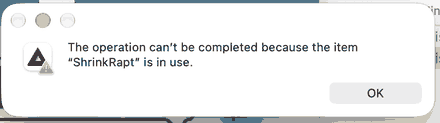
- “The operation can’t be completed because the item ShrinkRapt is in use.” ShrinkRapt is still open. Quit it, then drag again.
- ShrinkRapt opens the wrong data. Quit it. Open it again and immediately hold down the Option key until a window appears. Choose Select another datafile and select ShrinkRapt_Data.4dd in Documents.
- Don’t throw away the old version until the new one shows your recent patients and visits.
Windows
Use the download link in the email you got when you subscribed.
Still stuck? Email TechSupport@ShrinkRapt.com and include a screenshot of About ShrinkRapt.